In this post, I'm going to explore gradient mapping in Photoshop.
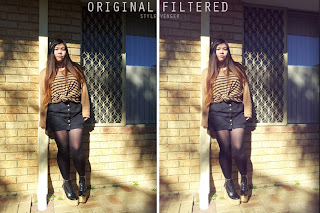
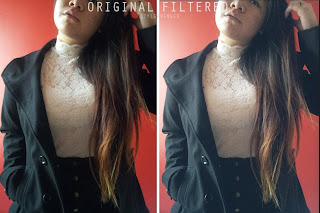 Alot of people ask me how I get 'instagram' filters on my photos and I've been doing it for years long before instagram became a thing. The reason I call them 'instagram' filters is because they have become very popular recently though apps such as instagram, photowonder etc. and these types of photos appearing a lot on sites such as tumblr and pintrest.
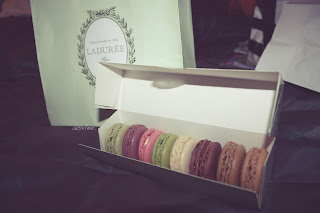
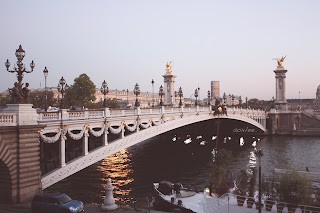 What they actually are, I would say, is gradient mapped filters that can be used to achieve certain atmospheric effects. They can be done very on any photo editing programs. I am using CS6 but I have done similar on programs such as Paintshop Pro 9 etc.
Alot of people ask me how I get 'instagram' filters on my photos and I've been doing it for years long before instagram became a thing. The reason I call them 'instagram' filters is because they have become very popular recently though apps such as instagram, photowonder etc. and these types of photos appearing a lot on sites such as tumblr and pintrest.
What they actually are, I would say, is gradient mapped filters that can be used to achieve certain atmospheric effects. They can be done very on any photo editing programs. I am using CS6 but I have done similar on programs such as Paintshop Pro 9 etc.
Anyway, if you are interested in finding out how I colour manipulate my pictures, jump the cut (aka click read more) to find out below! This is a tutorial on gradient mapping. Warning: Image heavy!
*****note: this 'tutorial' requires some very basic photoshop knowledge, such as copy/paste, cropping, sizing etc. If you don't know how to do those very basics, it might be pretty confusing. More importantly, understanding colour will be crucial to getting a good outcome with this method. But I've explained ALOT so no other skills required, don't worry
*****disclaimer: I am self taught and do not know the 'proper' way, if there is one, to do this. I'm sure there are other ways to achieve similar effects but I prefer this one personally. There are no right or wrongs! Only good or bad outcomes!
*****note: this 'tutorial' requires some very basic photoshop knowledge, such as copy/paste, cropping, sizing etc. If you don't know how to do those very basics, it might be pretty confusing. More importantly, understanding colour will be crucial to getting a good outcome with this method. But I've explained ALOT so no other skills required, don't worry
*****disclaimer: I am self taught and do not know the 'proper' way, if there is one, to do this. I'm sure there are other ways to achieve similar effects but I prefer this one personally. There are no right or wrongs! Only good or bad outcomes!


